Before you hand over a dead machine: a five-minute checklist
A little preparation gets you a faster diagnosis and a straighter answer at the counter.
September 2, 2026 · 3 min read
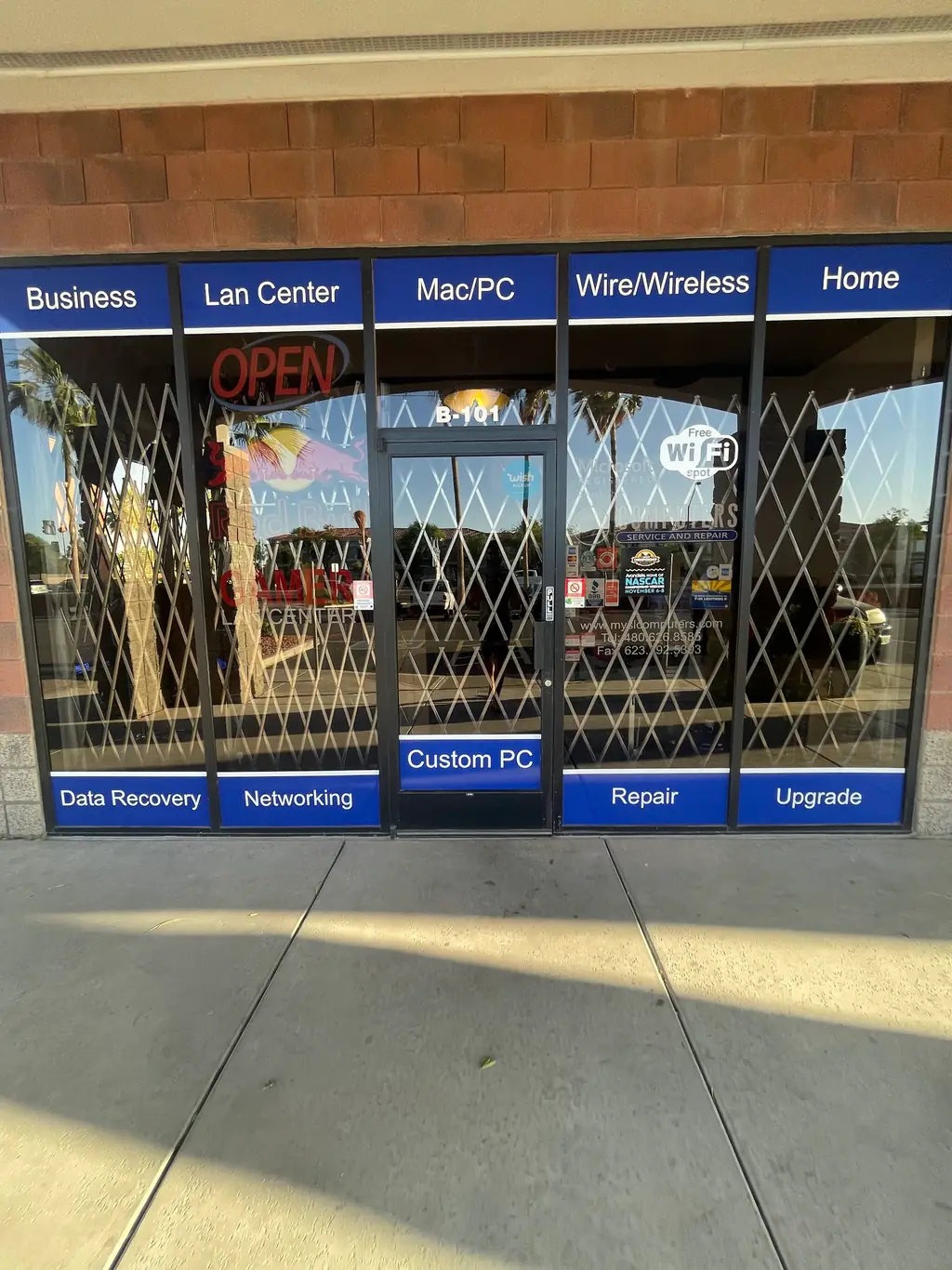
Handing a dead computer over to someone else is an oddly personal moment. Whatever's on that drive, tax records, five years of family photos, half a project you never told anyone you were working on, it's usually the actual reason you're worried, more than the machine itself. A few minutes of preparation before you walk in the door means a technician can get to work faster and get you a straighter answer, instead of spending the first part of the visit trying to figure out what you actually need back.
Know what you actually need back
Everything is not a real answer, even though it's the first thing most people say. Take two minutes before you leave the house and think about what you'd actually be upset to lose: a folder of documents, a specific set of photos, a project file you need for work this week. Saying that up front does two things. It tells the technician exactly what to prioritize if the drive needs careful handling, and it means you're not paying for or waiting on a full recovery of files you never cared about in the first place.
If the machine still turns on even briefly, or if this isn't a true emergency yet, it's worth backing up anything irreplaceable before it becomes one. A cheap external drive or a cloud backup running quietly in the background costs far less than a data recovery job later, and it means the next dead laptop is an inconvenience instead of a crisis. JCO Computers can set this up as part of a repair visit or as its own quick job, and it's one of the more overlooked pieces of advice a shop can give.
Passwords and PINs travel with the machine, in writing
A technician can't get past a lock screen without your password or PIN, even on a laptop that won't boot at all, because diagnostics on a dead machine still start with whatever the operating system can tell them once it's running again. Write it down on a piece of paper rather than trying to remember it under pressure at the counter, and hand it over separately from the machine itself rather than taped to it. If there's a second layer, a BIOS password or a PIN for a work account, note that too. It's one of the single most common things that slows a diagnosis down before it even starts.
Bring the charger, and say what happened
Bring the charger and cable even if you're fairly sure the problem has nothing to do with power. It rules a possibility out fast instead of adding a delay later. And mention anything unusual that happened right before the machine stopped working: a drop, a spilled drink, a fan that had been getting loud, a burning smell, a recent software update. None of that is embarrassing to mention, and all of it narrows down where a technician looks first, which usually means a faster and more accurate answer for you.
The five-minute checklist
- Decide what you actually need recovered, not just "everything"
- Back up anything irreplaceable now, before the next machine is the one that dies
- Write down your password or PIN and hand it over separately from the machine
- Bring the charger, even if you don't think power is the issue
- Note anything unusual that happened right before it stopped working
JCO Computers has been the family-owned shop on West Indian School Road in Avondale since 2005, and a plain explanation before any work starts is standard practice there, not an extra. The shop is open Monday through Saturday, 9:00 AM to 6:00 PM, closed Sunday. Bring the machine in or call (480) 626-8585 first, and more on how the repair process works is on the /services/computer-repair page.
JCO Computers, (480) 626-8585
Call (480) 626-8585More articles
Your laptop won't turn on. Here's what actually happens next.
A dead laptop and a dead hard drive are two different things, and the difference decides whether your files come back.
What a fixed-price IT plan actually covers
Managed IT means paying to keep things from breaking instead of paying after they already have.